Fabric Capacity automatisch starten und stoppen Automatically Start and Stop a Fabric Capacity
Richten Sie eine Azure Logic App ein, um Kosten zu reduzieren und Ihre Microsoft Fabric Capacity zeitgesteuert zu pausieren oder fortzusetzen. Set up an Azure Logic App to reduce costs by suspending or resuming your Microsoft Fabric Capacity on a schedule.
Schritt-für-Schritt-Anleitung Step-by-Step Guide
Zweck Purpose
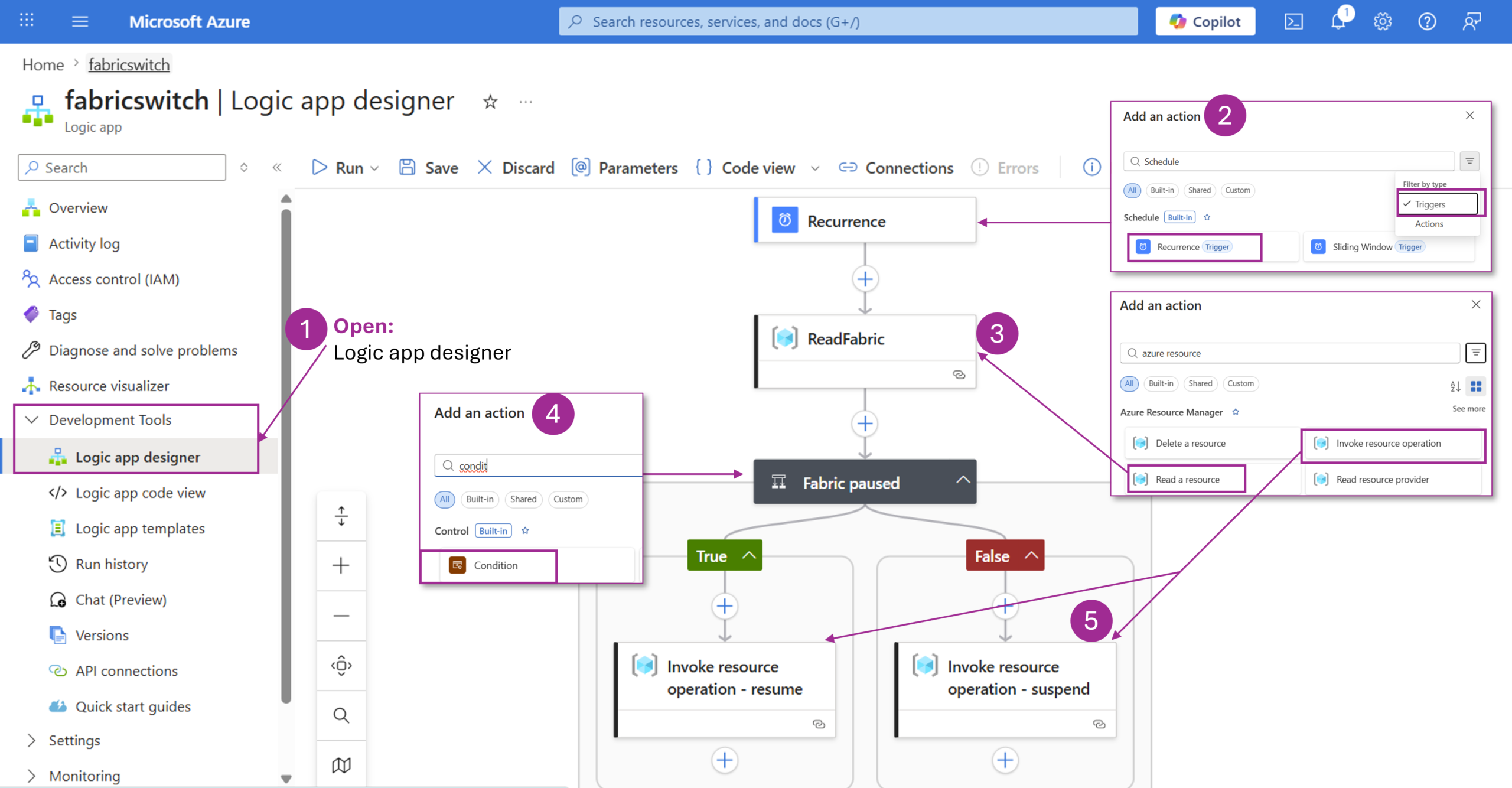
Diese Anleitung zeigt, wie Sie eine Microsoft Fabric Capacity mit einer Azure Logic App automatisch starten und stoppen. This guide explains how to automatically start and stop a Microsoft Fabric Capacity by using an Azure Logic App.
Voraussetzungen Prerequisites
- Microsoft Fabric Capacity
- Azure Resource Group
- Berechtigung zum Erstellen und Konfigurieren von Azure Logic Apps
- Zugriff auf das Azure Portal
- Berechtigungen zur Verwaltung der Fabric Capacity
- A Microsoft Fabric Capacity
- An Azure Resource Group
- Permission to create and configure Azure Logic Apps
- Access to the Azure Portal
- Permissions to manage the Fabric Capacity
Schritt 1: Azure Portal öffnen Step 1: Open the Azure Portal
Öffnen Sie das Azure Portal und melden Sie sich mit einem Konto an, das die erforderlichen Berechtigungen besitzt. Open the Azure Portal and sign in with an account that has the required permissions.
Schritt 2: Resource Group erstellen oder auswählen Step 2: Create or Select a Resource Group
- Gehen Sie zu Resource Groups.
- Wählen Sie Create.
- Geben Sie die erforderlichen Informationen ein.
- Erstellen Sie die Resource Group.
- Go to Resource Groups.
- Select Create.
- Enter the required information.
- Create the Resource Group.
Schritt 3: Logic App erstellen Step 3: Create a Logic App
- Gehen Sie im Azure Portal zu Logic Apps.
- Wählen Sie Create.
- Wählen Sie den Plan Consumption.
- Wählen Sie Subscription und Resource Group aus.
- Erstellen Sie die Logic App.
- Go to Logic Apps in the Azure Portal.
- Select Create.
- Choose the Consumption plan.
- Select your subscription and Resource Group.
- Create the Logic App.
Schritt 4: Recurrence Trigger hinzufügen Step 4: Add a Recurrence Trigger
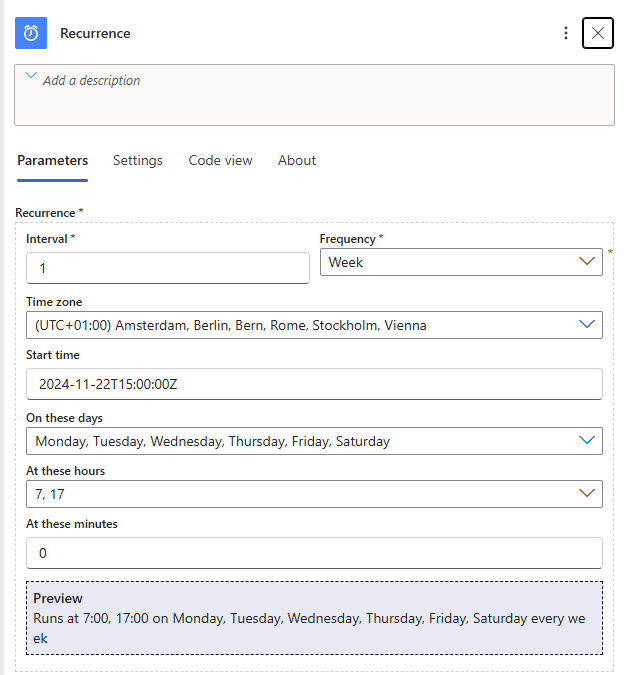
Fügen Sie den Trigger Schedule → Recurrence hinzu und definieren Sie, wann die Logic App laufen soll. Add the trigger Schedule → Recurrence and define when the Logic App should run.
- 07:00 Uhr zum Fortsetzen der Fabric Capacity
- 17:00 Uhr zum Pausieren der Fabric Capacity
- 07:00 to resume the Fabric Capacity
- 17:00 to suspend the Fabric Capacity
Schritt 5: Fabric Capacity Resource lesen Step 5: Read the Fabric Capacity Resource
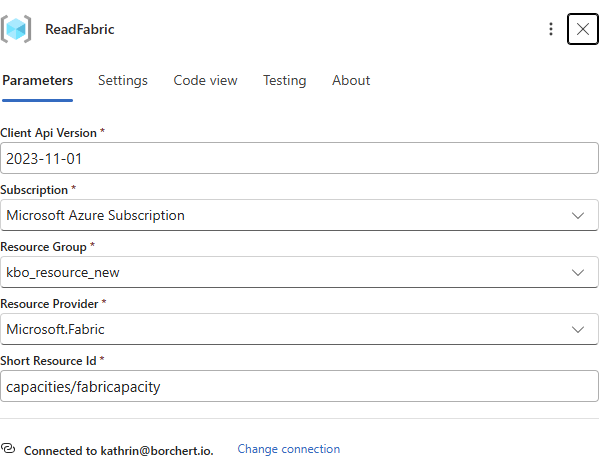
Fügen Sie die Aktion Azure Resource Manager → Read a resource hinzu. Add the action Azure Resource Manager → Read a resource.
| Field | Value |
|---|---|
| Short Resource ID | capacities/<Fabric capacity name> |
| Client API version | 2023-11-01 |
Schritt 6: Condition hinzufügen Step 6: Add a Condition
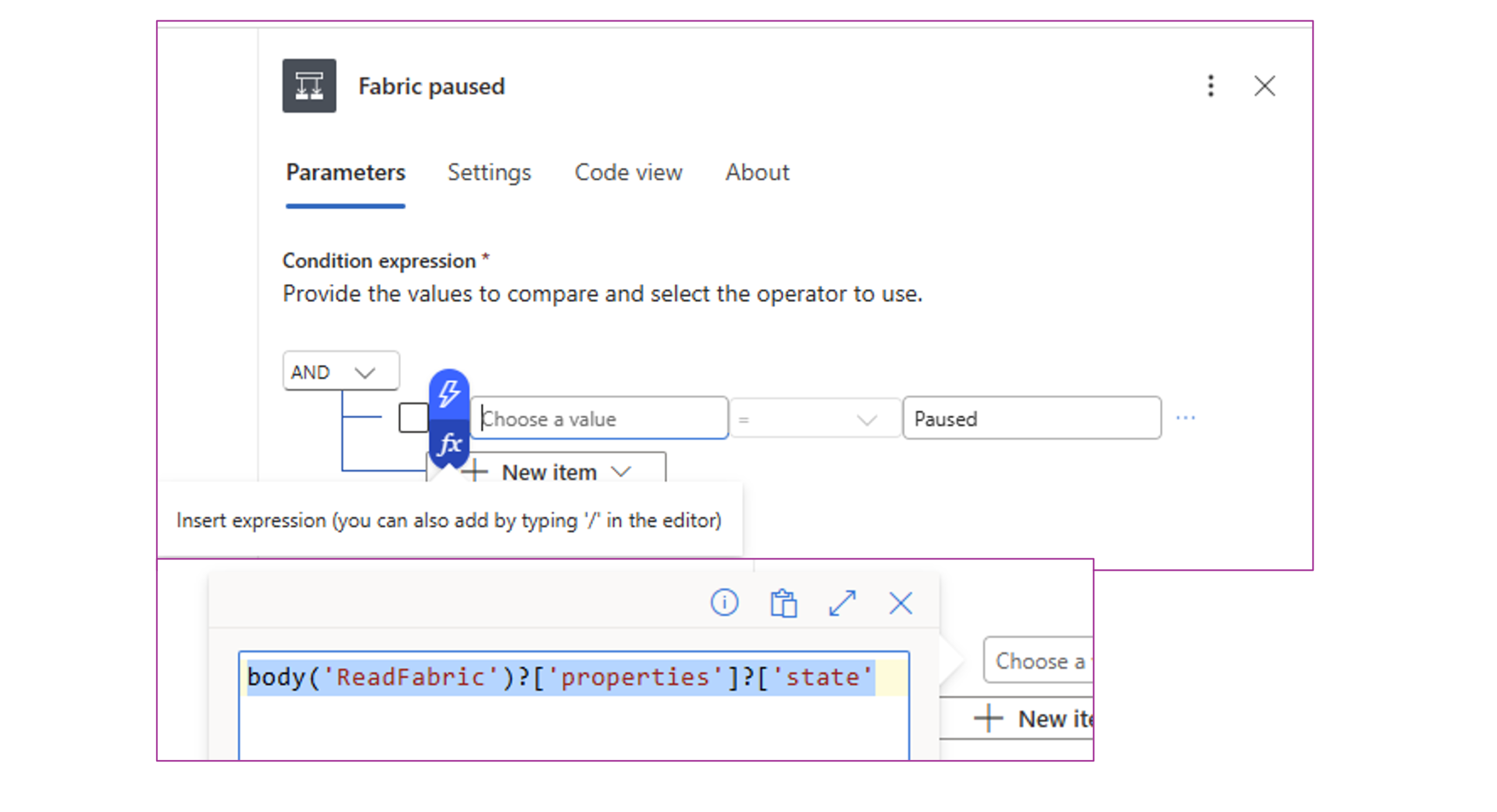
Fügen Sie Control → Condition hinzu und prüfen Sie den aktuellen Status der Capacity. Add Control → Condition and check the current state of the capacity.
body('ReadFabric')?['properties']?['state']Ersetzen Sie ReadFabric, falls Ihr Schritt anders benannt wurde. Replace ReadFabric if your step uses a different name.
Schritt 7: Start- und Stop-Aktionen konfigurieren Step 7: Configure Start and Stop Actions
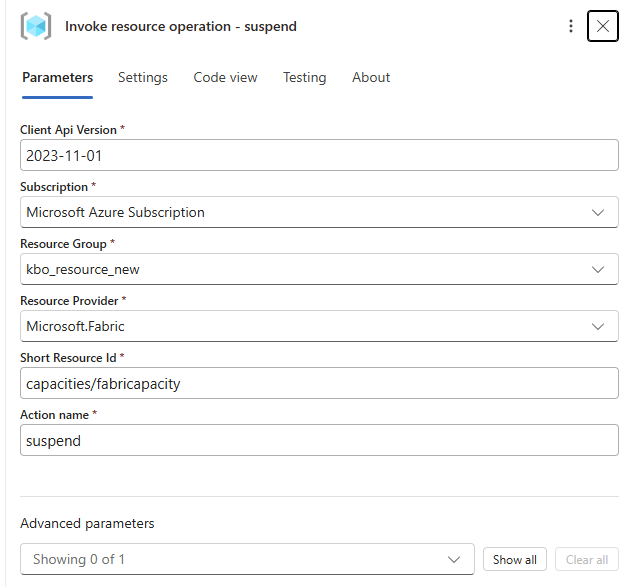
Konfigurieren Sie innerhalb der Condition zwei Aktionen:
Inside the condition, configure two actions:
- Wenn TRUE: Aktion
resumezum Fortsetzen der Fabric Capacity. - Wenn FALSE: Aktion
suspendzum Pausieren der Fabric Capacity.
- If TRUE: Action
resumeto resume the Fabric Capacity. - If FALSE: Action
suspendto suspend the Fabric Capacity.
Schritt 8: Logic App speichern und testen Step 8: Save and Test the Logic App
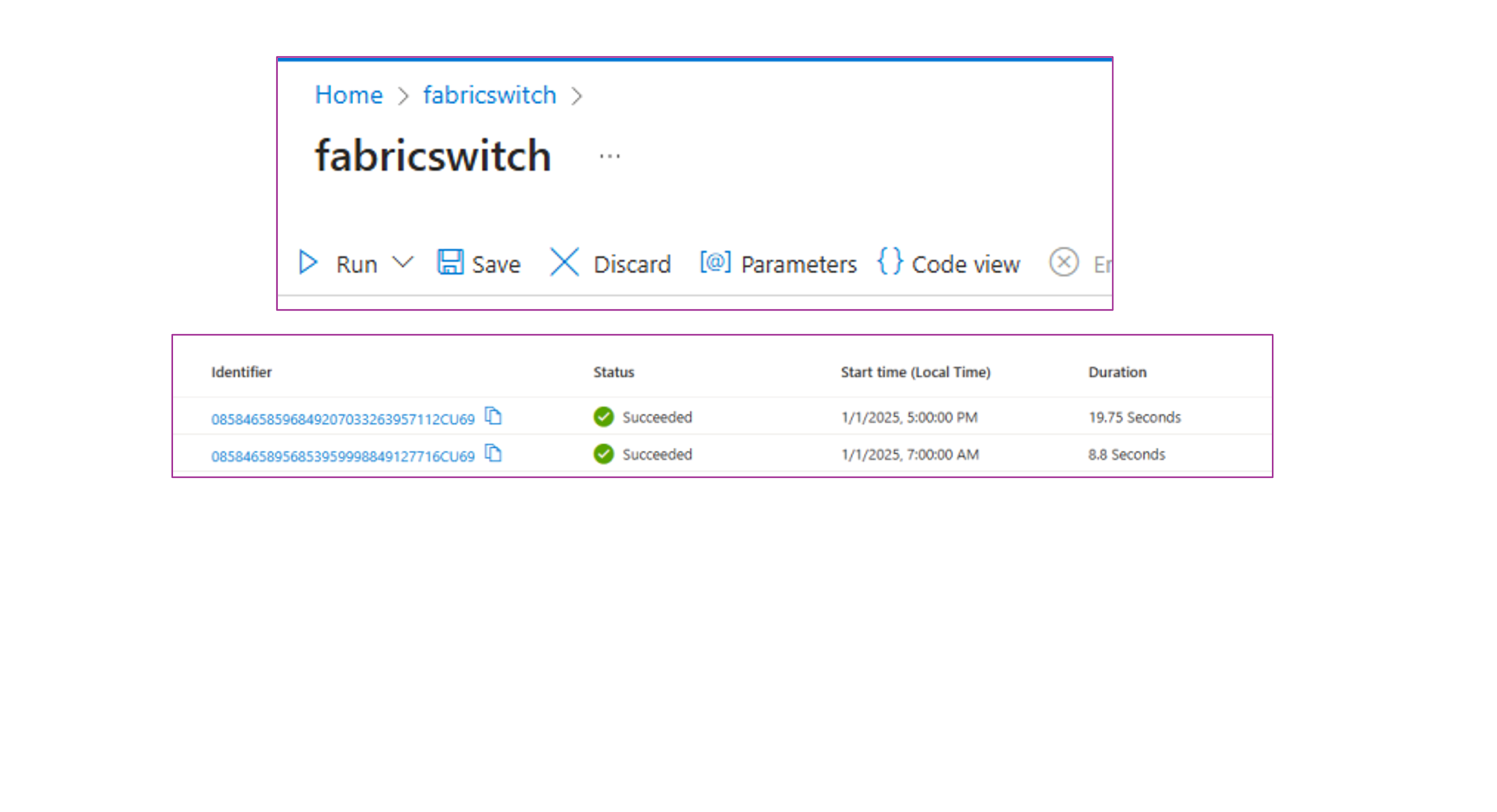
- Wählen Sie Save.
- Starten Sie die Logic App manuell zum Testen.
- Öffnen Sie die Overview-Seite der Logic App.
- Prüfen Sie die Run History.
- Bestätigen Sie, dass der Lauf erfolgreich abgeschlossen wurde.
- Select Save.
- Run the Logic App manually for testing.
- Go to the Overview page of the Logic App.
- Check the run history.
- Confirm that the run completed successfully.
Ergebnis Result
Nach der Einrichtung prüft die Logic App die Fabric Capacity zu den definierten Zeiten und setzt sie je nach Workflow fort oder pausiert sie. After setup, the Logic App checks the Fabric Capacity at the configured times and either resumes or suspends it based on your workflow.